Architecture
The key words “MUST”, “MUST NOT”, “REQUIRED”, “SHALL”, “SHALL NOT”, “SHOULD”, “SHOULD NOT”, “RECOMMENDED”, “MAY”, and “OPTIONAL” in this page are to be interpreted as described in RFC 2119.
Solution Platform Constraints
To facilitate do-it-yourself building, the solution platform is the Raspberry Pi with a self-developed HAT, which contains an OLED display and a custom keyboard. Integrated into the HAT is an IMU and a GPS chip with antenna. Only components compatible with this solution platform will be used. That means that only cameras compatible with the Raspberry Pi CSI camera connector are supported.
Choice of Language: Python
The main language of the PiFinder software is Python. Python is a well known language with a lot of support for managing astronomical data. There’s good support for image manipulation, statistics, APIs and implementing web servers.
The second most used language are shell scripts managing especially the setup of the Raspberry Pi and upgrades.
Architecture Overview
Architecture determining Requirements
As PiFinder is an interactive application with user input, there are some time-critical requirements:
The camera picture SHALL be displayed as fast as possible on Raspberry Pi, if it is displayed, so that movements of the telescope are reflected in the display “instantanously” for the users. This implies a limit of 0.1s, see [NIELSEN_LIMITS] [1].
The position derived on the celestial sky from the camera picture SHALL likewise be displayed “instantanously”. This means a very fast blind plate-solver MUST be used.
While the telescope is moved, the camera is not able to supply pictures that could be solved by the plate-solver (motion blur). In order to be able to provide feedback on the movement to the users, PiFinder uses an IMU [2]. Information derived from this subsystem MUST also be displayed to the user in an instantaneous fashion.
PiFinder offers a webserver interface, that users can connect to, to remotely control PiFinder and to display and set certain configuration information, that would be cumbersome to change using the keyboard. This means that in parallel http requests MUST be parsed and serviced.
SkySafari can connect to PiFinder and be used as planetarium software to a) see there PiFinder is pointing and b) to push targets to PiFinder. This means that PiFinder MUST support the LX200 protocol as supported by SkySafari.
PiFinder is a collaboration of processes
This implies, that a lot of information needs to be collected in parallel, and MUST be processed and integrated to be displayed to the users. Given the choice of Python as the main programming language means that the choice of concurrency primitives is important:
As Python has a Global Interpreter Lock [GIL], PiFinder uses separate processes for the different tasks mentioned above. This means that for communication between the processes either queues or shared memory are employed. Wherever possible, we prefer to use queues to communicate between processes, as it provides a decoupling of creation and consumption of data, so that the receiving end can process the data at a convenient point in time. In real life, most of the data is passed back and forth using shared memory.
Processes
PiFinder consists of the following processes with their main responsibilities -
- Offloading Device interfacing to separate processes:
GPS: Read telescope position and local time from GPS and post it to other processes. main stores this in the shared_state.
gps_pi.pykeyboard: Scan the keyboard, convert each button press into a keyboard event and post it.
keyboard_pi.pycamera: Setup the camera, read images into shared image.
camera_pi.pyIMU: Setup the IMU, read movements from IMU, share its orientation
imu_pi.py
- Main Processing:
main: Entry point for PiFinder, this is the UI process, including Console, menu_manager and display.
main.pysolver: platesolve image, share position.
solver.pyintegrator: Estimate PiFinder’s current pointing by merging platesolve information and IMU data.
integrator.py
- External Interfaces:
webserver: Provide webpage, that shows the display and current status and allows users to control PiFinder via this website, e.g. from a mobile.
server.pypos_server: Provide SkySafari the current position of PiFinder, receive new targets from SkySafari.
pos_server.py
In each of these code units, there’s a function that will be called as the entry routine into that module. All of these have a signature and general structure like this:
def entry_function(shared_state, ..., <queues>, log_queue, ..., <startup parameters>)
   MultiprocLogging.configurer(log_queue) # ... Enable log forwarding, see below

   # Instantiate classes and hardware
   ...

   # Processing loop
   while true:
      ...

      # Use shared memory
      var = shared_state.get ...
      ...
      shared_state.set ...
      ...

      # Use messages on queues
      var = queue.receive ...
      ...
      queue.send ...
      ...
Collaboration
The following diagram provides an overview of the collaboration of processes:
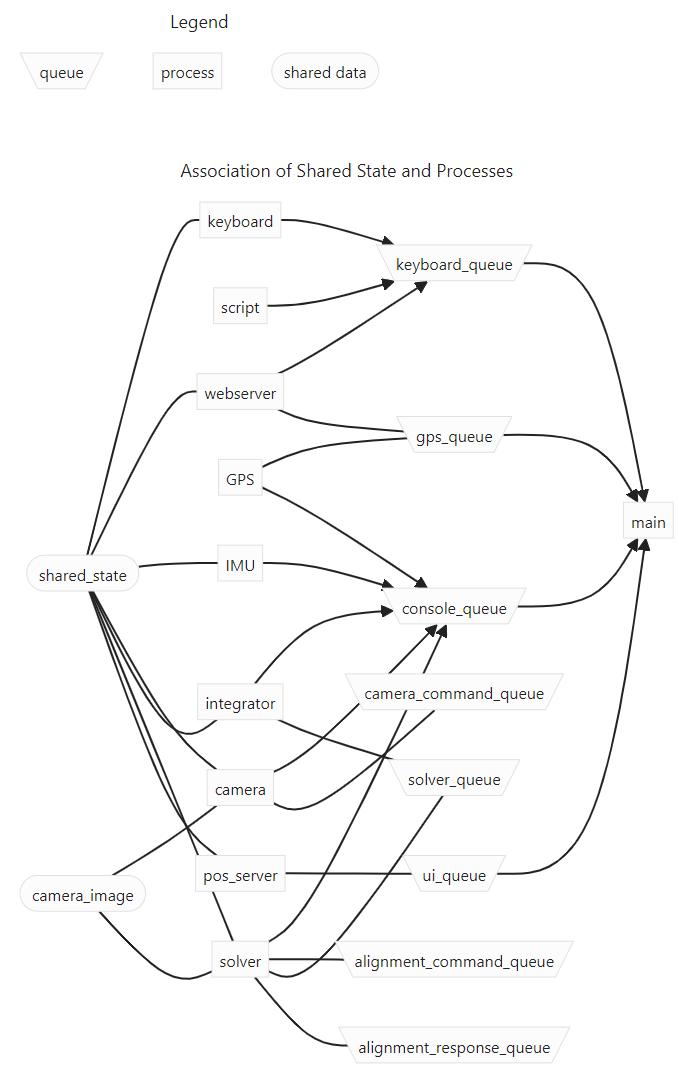
Note: main is associated with all queues and processes. Here we show only the queues that are explicitly processed and consumed in main’s loop.
Further note: The graphic was generated automatically by mermaid. We only show some of the flow directions, as the rendering engine gets confused and a lot of the clarity of the representation is lost.
- Here some details:
The camera shares pictures using the Shared Memory image (see below) and receives commands on exposure time through camera_command_queue
The solver processes the image and notifies the integrator of new solves through the solver_queue
The aligment_command_queue is used to ask the solver, which pixel corresponds to a given position and the result is handed back using the aligment_response_queue
Through the ui_queue a new target is set by the SkySafari server
Commands and telescope location (GPS) are injected by the webserver into the respective queues.
Running with-out hardware
When PiFinder’s software is not run on a Raspberry Pi equipped with the additional hardware,
during startup instead of importing and instantiating the classes using the “real” hardware with <class>_pi.py, the startup
routine imports the respective <class>_fake.py or <class>_none.py code units.
Logging
This choice of architecture means that logging to disk is a little bit more complex, as we need to avoid writing to the same log file from multiple processes, to avoid overwriting each other’s logs. We have therefore implemented a log thread and queues delivering log messages from other processes. This means that in a log file, the order of log messages can be out of order.
To set this up, in each process you need to invoke logging like this:
from PiFinder.multiproclogging import MultiprocLogging

# You can create loggers with-out setting up forwarding
logger = logging.getLogger("Solver")

...

# In the main loop of the process ...
def process( ..., log_queue, ...)
    MultiprocLogging.configurer(log_queue) # ... Enable log forwarding

    # only then create log messages
    logger.debug("Starting Solver")
Note that if you use console.write(), you’ll in almost all cases also want to issue a logging.info():
If the console cannot be displayed, the log file’s the only way to see what’s going on.
Choice of Plate-Solver
PiFinder uses cedar-detect-server (on GitHub) in binary form to determine star centroids in an image. This is a fast centroider written in the Rust programming language that is running in a separate process. A gRPC API is used to interface with this process. See the Python documentation in the linked GitHub repository.
The detected centroids are then passed to the cedar-solve (on GitHub) for plate-solving. Note that in the code it is still called tetra3, as this was used before, and cedar-solve is a fork of the tetra3-solver (on GitHub). It uses a database that is stripped down to work with the approximate focal length of compatible lenses as listed in the Parts List so that the time to get a solve is minimal.
If the platform that PiFinder is running on is not supported by cedar-detect, [3] PiFinder falls back to using the centroider of tetra3.
Testing
Unit Testing
On commit or pull request to the repository the unit tests in python/tests are run using the
configuration in pyproject.toml using nox (also see its configuration in
noxfile.py). Please provide unit tests with your pull requests.
Fuzz Testing
A.k.a „monkey testing“.
PiFinder’s software can be invoked with the --script <file> parameter,
which plays back the key strokes listed in the specified file.
In the scripts folder you will find two files that contain randomly created key
presses. One file contains 1k the other 10k simulated key presses. We recommend
to run this after every change to the UI, before you create the pull request.
This is currently not automatically done on commit to the repository.
There’s also a script to create larger keystroke files.
Help Needed
Currently the number of tests is rather low and needs improvement.
Please visit Issue #232 for a discussion of tests that we would like to implement.