Swapping the SD Card
Note
This page covers rev4, v3 and v2.5 PiFinders, and the procedure differs on each. If you’re not sure which one you have, the Which PiFinder do I have? section of the Quick Start tells them apart. The microSD card holds everything the PiFinder runs — the operating system, the PiFinder software, your settings, and the deep sky catalog images — so swapping it is how you recover from a corrupt card or move to a fresh or larger one.
The PiFinder boots from a microSD card. On rev4 that card sits in a slot on the side of the case, reachable from outside, so swapping it takes no tools and nothing has to come apart. This page covers getting at the card and swapping it. To put software on the new card first, see Software Setup.
Note
On v3 and v2.5 PiFinders the card is inside the case, in the slot between the Raspberry Pi and the power board, and you have to open the case to reach it. See Reaching the card on v3 and v2.5 units below. The v3 manual covers that hardware throughout.
When you’d swap the card
The card has become corrupt and the PiFinder won’t boot reliably (see Troubleshooting & FAQ).
You’d rather re-image onto a spare card and keep your original as a backup.
Image the new card before you start — the Prebuilt Release Image is the quickest way, and it already includes the catalog images.
Before you start
If the PiFinder is on, shut it down cleanly and wait for the screen and keypad to go dark before you touch the card — see Shutdown. Pulling a card from a running unit can corrupt it.
Note
On v3 and v2.5 PiFinders, switch the power off at the slide switch once the screen and keypad have gone dark, before you open the case. The v3 manual covers that hardware throughout.
Swapping the card
Face the screen and look at the left-hand side of the case. The card slot is a thin opening in that side panel with the edge of the microSD card sitting in it — no tools, and nothing to take apart.
The slot is spring-loaded, so the card comes out with a push rather than a pull:
Press the card in until it clicks, then let go. The spring pushes it part-way out.
Slide the card clear of the slot.
Push the replacement in until it clicks and stays put.
The card is easy to crack once it’s part-way out, so support it as you work and don’t flex it against the case.
Reaching the card on v3 and v2.5 units
On these units the card sits inside the case, so you’ll need to open it up first. The card sits in a friction slot — there’s no spring to push it in or out, so you pull it straight out and push the new one straight in.
Opening a v3 case
You’ll need a small Phillips screwdriver. On every v3 unit, start by removing the three screws on the right-hand side as you face the screen.
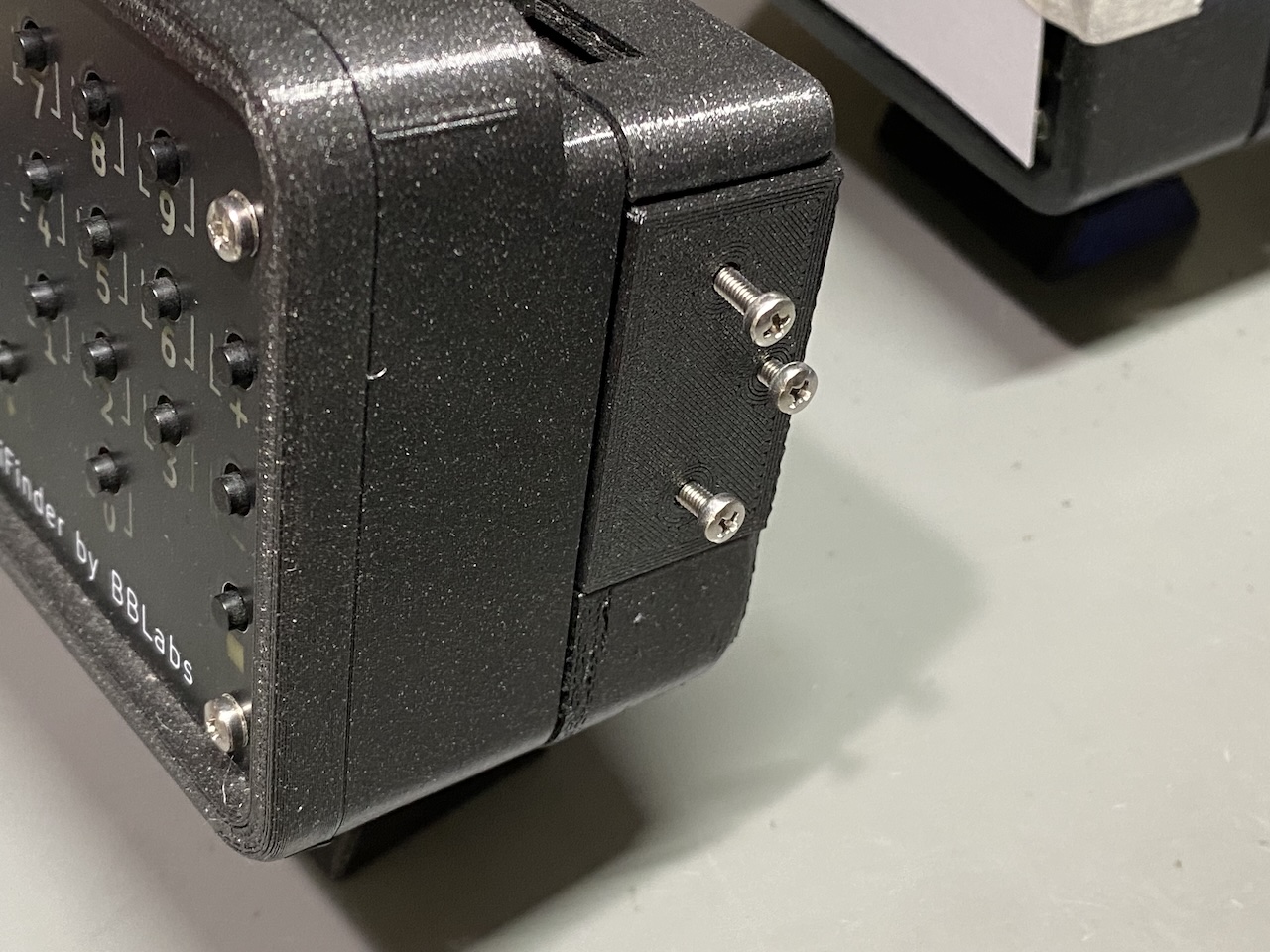
How you reach the card from there depends on your configuration. If you’re not sure which one you have, the Configurations Overview has photos of each.
Right configuration
Simply lift off the separate cover held on by the three screws to expose the card.
Left configuration
For the left configuration, the three screws hold the camera assembly in place. Gently tilt the camera assembly out of the way to reach the card. Be mindful of the cable, but there should be plenty of slack.
Flat configuration
The three screws hold one side of the flat cradle. Removing them allows enough flex to gently pull the flat holder down to expose the card. The image below shows this, but was taken during assembly before the camera is installed. There is no need to remove the camera to access the sd card.
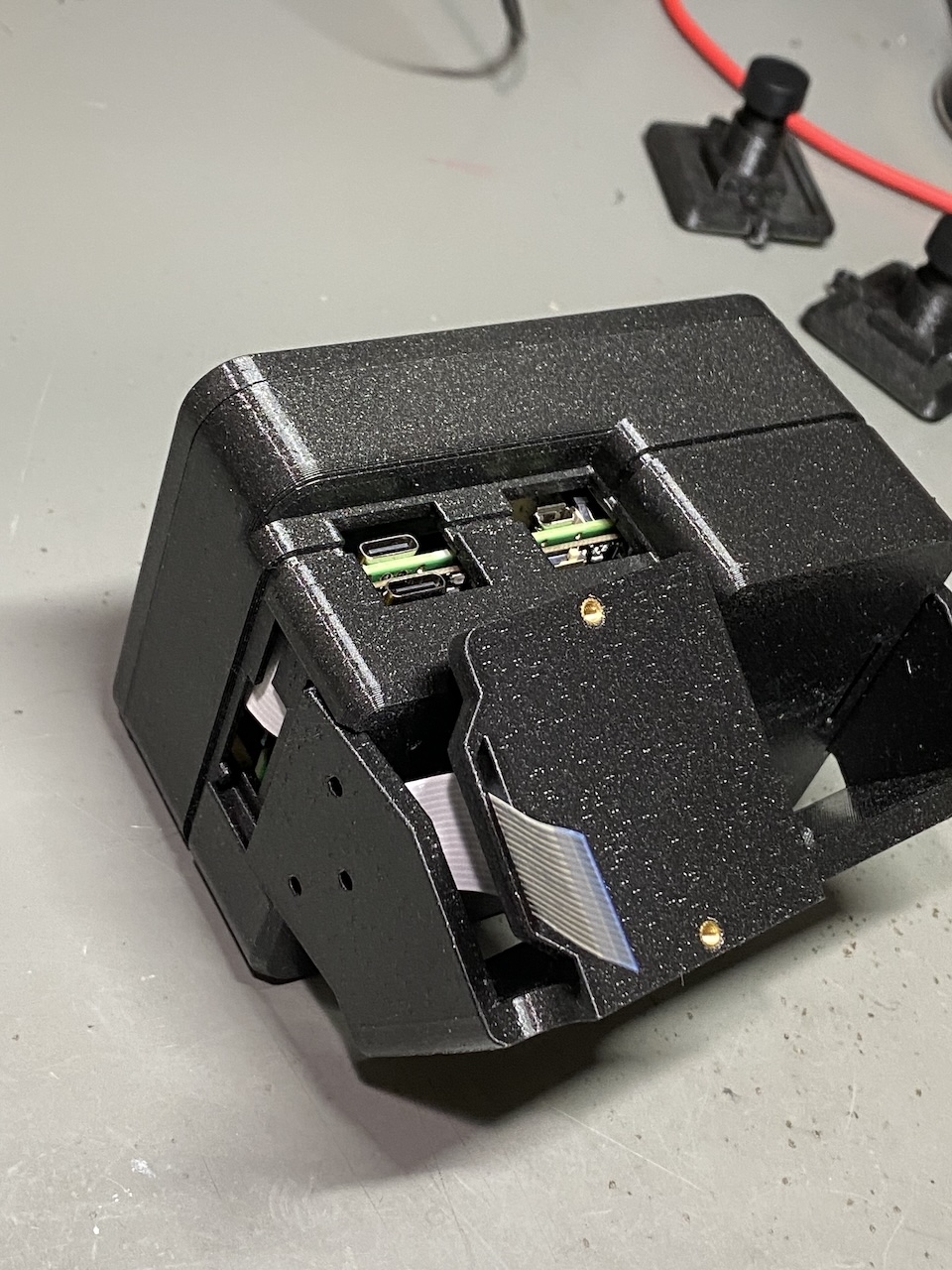
Opening a v2.5 case
A v2.5 unit has an access door that snaps out to expose the card — no tools needed. The alternative is to undo the three faceplate screws with a small Phillips screwdriver and slide the whole shroud off. Those are the faceplate screws, not the side screws a v3 uses.
Removing and replacing the card
The card sits in the slot between the Raspberry Pi board and the power board. The white camera ribbon cable runs nearby — move it gently aside if it’s in the way, taking care not to crease or unseat it.
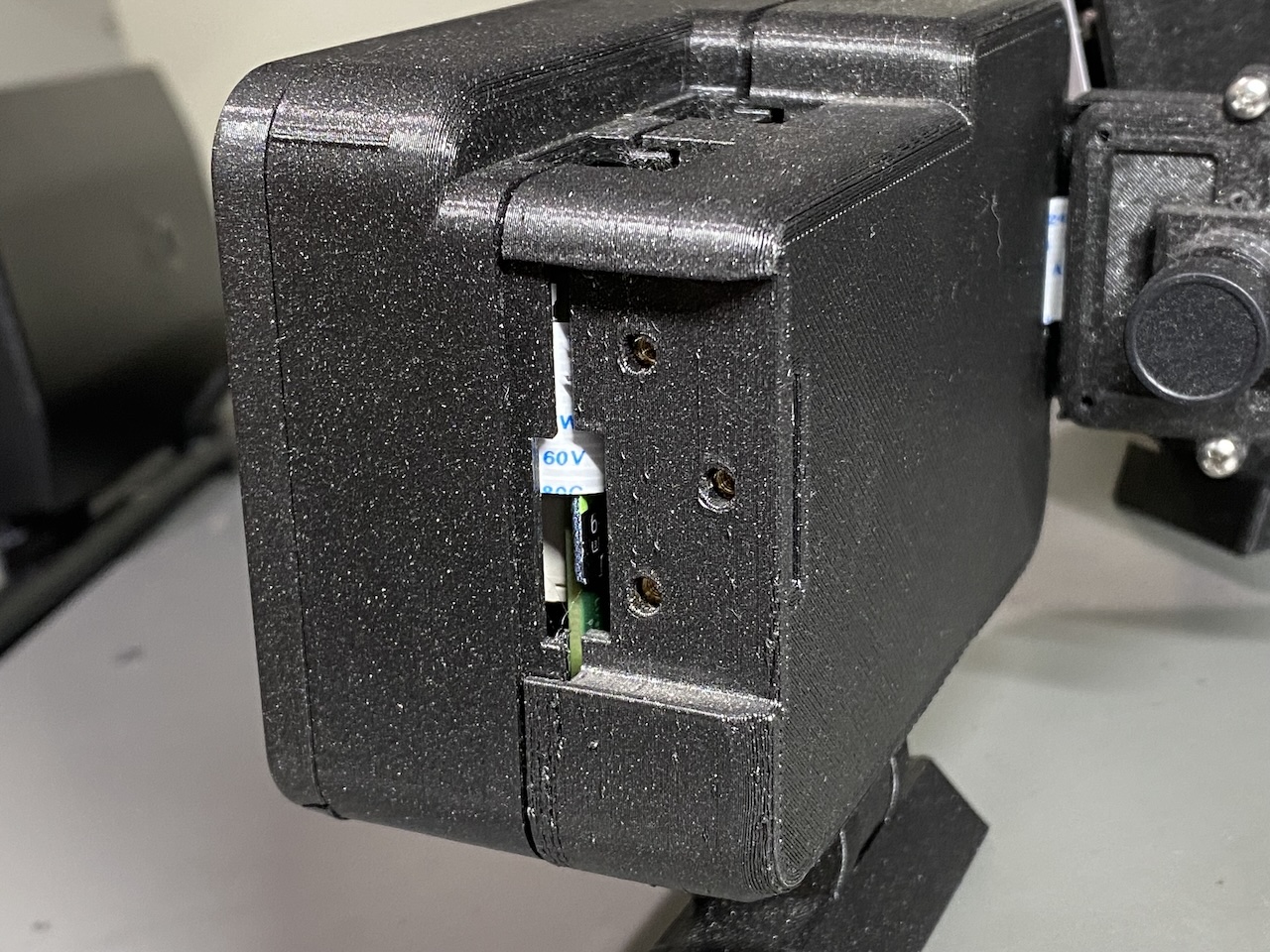
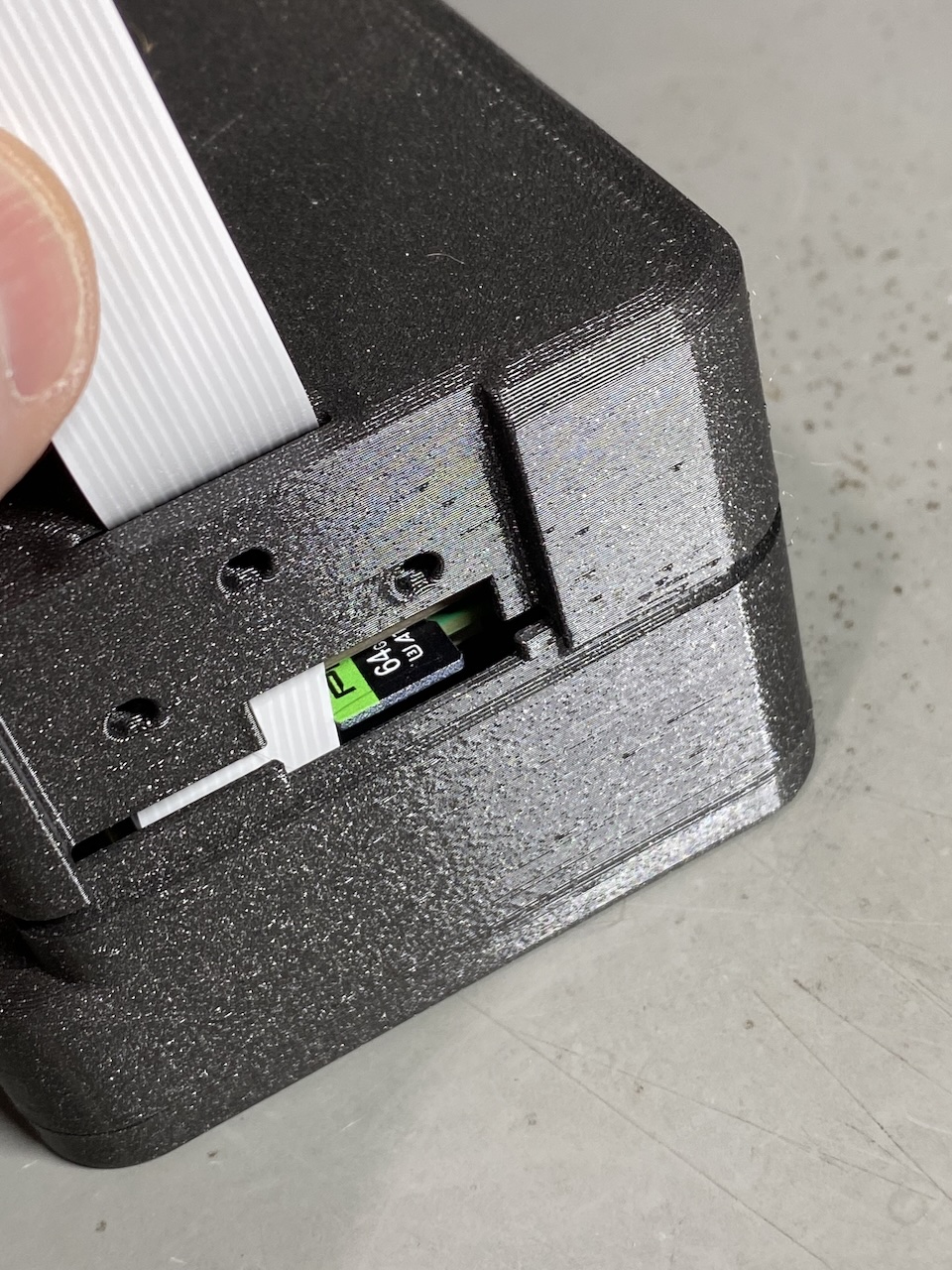
Grip the card and pull it straight out, then push the replacement straight in until it’s fully seated. The card is easy to crack once it’s part-way out, so support it as you work and don’t flex it against the case.
Reassembling
Reverse the steps you took to get in: refit the cover, holder or shroud, check that the camera ribbon is sitting flat and isn’t pinched, and replace the three screws — snug, not forced. An access door presses back into place on its own.
First boot
Power the PiFinder on. The first boot from a freshly imaged card takes longer than usual while it expands the filesystem to fill the card, so give it a couple of minutes.
Important
After swapping the card you’ll most likely need to set the Camera Type
again. A freshly imaged card defaults to one sensor, and if it doesn’t match
your unit the camera view will be blank. Set it under Settings → Advanced → Camera Type
— the v3 sensors are imx462 and imx296 — then fully power the
PiFinder off and on, as a software restart alone won’t apply the change.
See The camera view is blank or black for more. It’s
also worth re-checking your WiFi settings, since they won’t carry over to a
freshly imaged card.